
A ledger you can read back
Switch between a list and calendar history, then edit or delete an entry without hunting through a report.
iPhone + embedded Apple Watch
Hourleaf is a focused ministry-time ledger for the moment after the work: enter service or credit time quickly, see the history clearly, and prepare a monthly report without turning a personal routine into a project.
No account, ads, or subscription. Install once on iPhone; the Apple Watch app is included.
New in 1.0.7: a brief celebration when service and credit together reach 50 hours in a month. With Reduce Motion enabled, it appears without confetti.
Quick entry
How much time?
Hours
01
Minutes
30
Direct entry
Service · 1:30
saved to History One calm way to record from the devices you already use.
Entry
Tap in seconds
Review
List + calendar
Report
Monthly share
Companion
Direct Watch entry
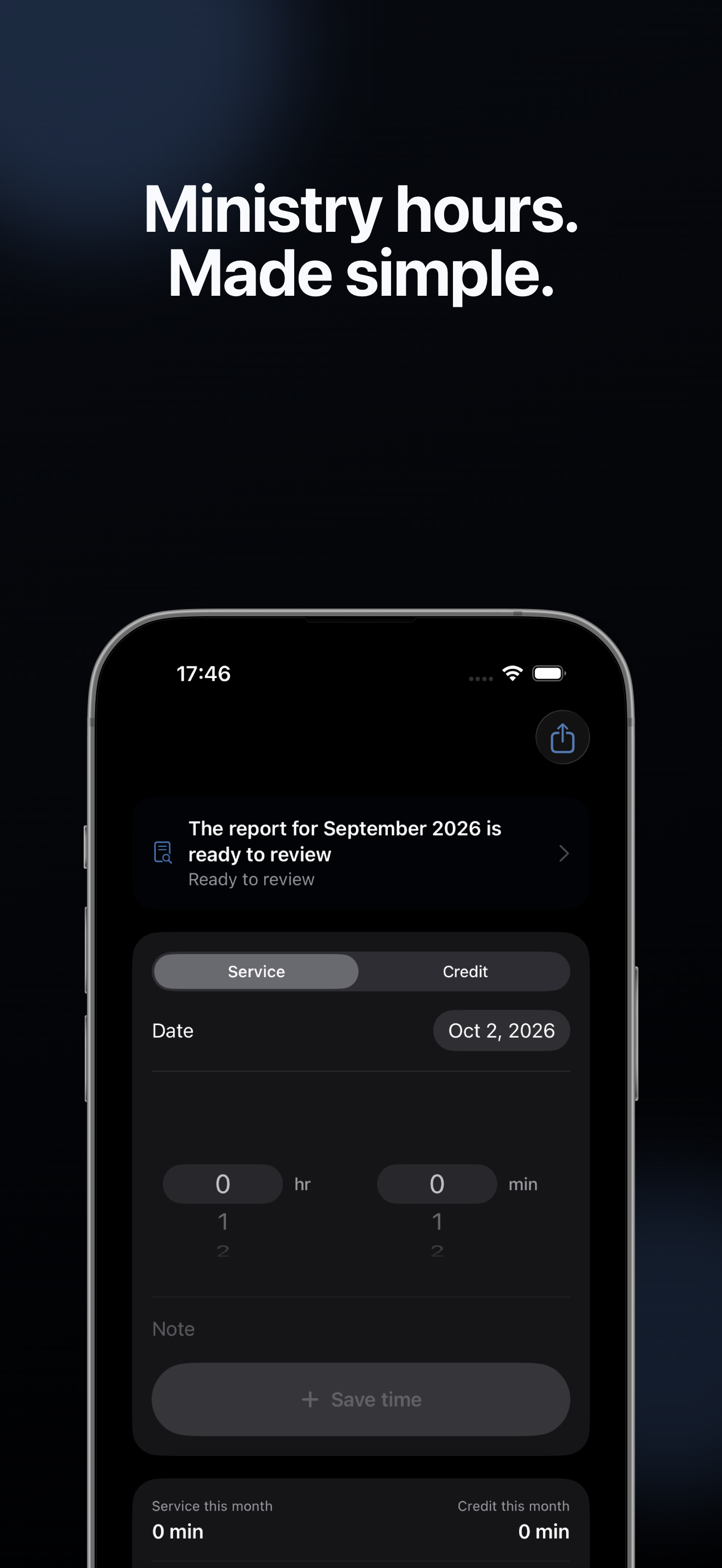
The real app
The App Store and this page show the current Hourleaf interface, with example data only. There is no account screen, paywall, or hidden subscription after download.
The daily loop
The Add tab stays deliberately small. Your attention belongs to the work, not to maintaining the tool that remembers it.
Start with Service or Credit so the two totals stay distinct.
Pick the date, hours, and minutes. Add a note only when it helps later.
Return to a clean Add screen, then review the ledger when you are ready.
Review without reconstruction
History, progress, reports, and reminders answer the questions that appear after an entry: what happened, where am I in the service year, and what is ready to share?
Switch between a list and calendar history, then edit or delete an entry without hunting through a report.
For a ready previous-month report, Send marks the report as sent and opens the system share sheet. Review remains available when you want it.
See monthly totals and progress through the September–August service year, including the 600-hour goal.
Local notifications can bring Hourleaf back to mind; they never create an entry automatically.
Direct entry
01:30
Service time
iPhone + Apple Watch
Choose Service or Credit, set hours and minutes with the Digital Crown, and confirm. The entry then appears in History on your iPhone.
You can also create two simple Siri phrases for service and credit. The guide explains both options step by step.
Open the easy setup guideNo account, ads, tracking, or third-party analytics. Records stay on your iPhone unless you choose to export or share them through the system share sheet.
Read the privacy policyBefore deleting Hourleaf or moving to another iPhone, open Settings → Data Management, save a backup to Files, and check that the file is there.
Read the migration guideHourleaf is an independent personal tool, not affiliated with or endorsed by any religious organization.